> ## Documentation Index
> Fetch the complete documentation index at: https://conveo.ai/docs/llms.txt
> Use this file to discover all available pages before exploring further.
# Templates
> Templates are reusable study blueprints with variables and stimulus placeholders that let you spin up comparable studies in one click
Define your research design once, with placeholders for the parts that change, and spin up consistent, comparable studies every time. Ideal for recurring research like concept tests, ad tests, and brand trackers where the structure stays the same but the product, brand, or stimulus varies.
***
## Creating a Template
### How to create a template
#### From scratch
1. Navigate to **Templates** in the sidebar.
2. Click **Create template**.
3. You'll land in the template design view, which works just like the regular Topic Guide editor.
4. Build your topic guide: add research objectives, sections, questions, screeners, stimuli, and any other settings.
#### From an existing study
If you already have a study that you'd like to reuse as a blueprint, you can create a template from it. This duplicates the study's structure into a new template, leaving the original study unchanged.
1. Open the study you want to base your template on.
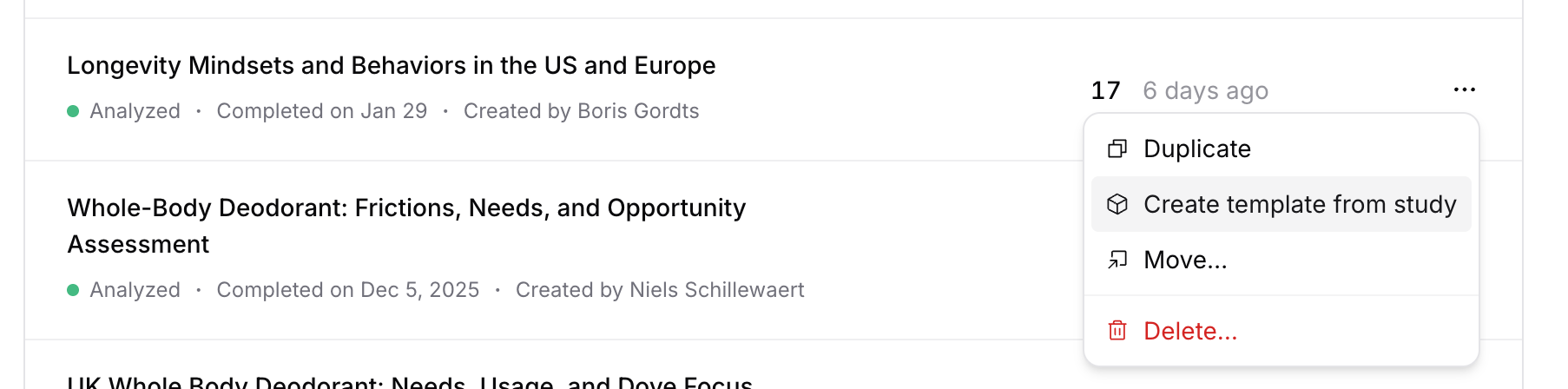
2. In the study dropdown menu, select **Create template from study**.
3. A new template is created with the same topic guide structure.
 Uploaded studies cannot be converted to templates.
### Template variables
Template variables are placeholders that get replaced with actual values when a study is created from the template. There are two types: **text variables** and **stimulus variables**.
Uploaded studies cannot be converted to templates.
### Template variables
Template variables are placeholders that get replaced with actual values when a study is created from the template. There are two types: **text variables** and **stimulus variables**.
 #### Text variables
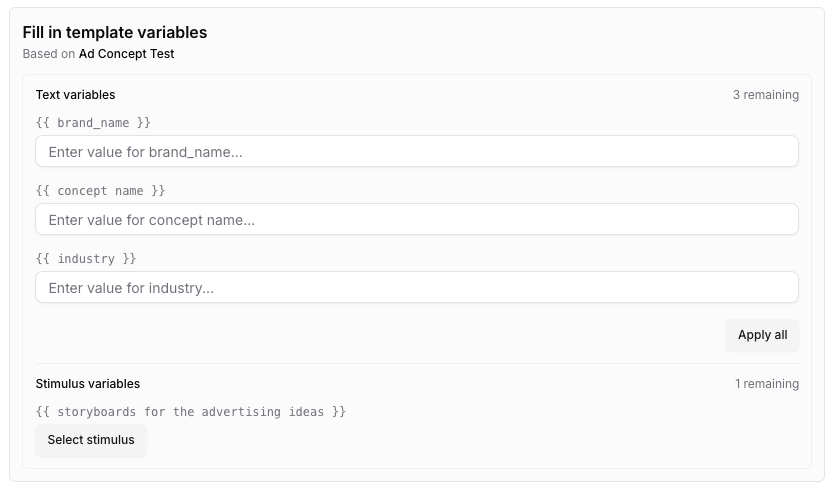
Text variables use a `{{ variable_name }}` syntax. You can place them in most text fields in your topic guide:
* Study title, description, and context
* Research objective titles and descriptions
* Question text and context
* Question options
* Terms and conditions
For example, a concept test template might include:
* `{{ brand_name }}` in the study title and questions
* `{{ product_category }}` in the briefing context
When a researcher creates a study from this template, they'll see a wizard prompting them to fill in each variable. They can replace variables one by one or use **Apply all** to fill them in at once.
Variables are automatically detected. You don't need to register them anywhere. Simply type `{{ variable_name }}` in any supported text field, and it will show up in the template variables panel.
#### Stimulus variables
When you add a stimulus to a template, it is automatically created as a **placeholder**. Placeholder stimuli define the type of stimulus expected (e.g. single image, video, comparison) and where it appears in the topic guide, but they don't contain actual content.
When a researcher creates a study from the template, the placeholder stimuli appear in the template variables wizard. The researcher is prompted to navigate to the stimulus and upload the actual content.
This ensures every study created from the template has the right stimulus in the right place, while allowing the actual content to vary.
### Template title and instructions
Templates have two additional fields that regular studies don't:
* **Template title**: A display name for the template. This is what users see in the template list and when creating studies from it.
* **Template instructions**: Free-form instructions (supports Markdown) that explain how to use the template, for example what each variable means, what kind of stimulus to upload, or any guidelines for the researcher filling it in.
When someone creates a study from your template, the instructions are shown at the top of the design view to guide them through the setup.
***
## Using a Template
To create a study from a template:
1. Navigate to **Templates** in the sidebar.
2. Find the template you want to use.
3. Click **Use template**.
4. A new study is created with the template's topic guide structure.
5. On the study's design page, you'll see the **template variables wizard** at the top.
6. Fill in the text variables and replace the stimulus placeholders.
The new study links back to its source template, so you can always see which template it was based on.
***
## Template Library
The **Template Library** is a collection of ready-made templates provided by the Conveo team. These templates cover common research use cases and give you a starting point that you can customize.
To browse the library:
1. Navigate to **Templates** in the sidebar.
2. Click **Template Library**.
3. Browse the available templates. You can click **View** to preview a template's topic guide.
4. Click **Copy to organization** to add a template to your own template list.
Once a template is copied to your organization, it works just like any template you created yourself. You can edit it, customize it to your needs, and create studies from it. This lets you adapt best-practice templates to match your specific research methodology and brand guidelines.
#### Text variables
Text variables use a `{{ variable_name }}` syntax. You can place them in most text fields in your topic guide:
* Study title, description, and context
* Research objective titles and descriptions
* Question text and context
* Question options
* Terms and conditions
For example, a concept test template might include:
* `{{ brand_name }}` in the study title and questions
* `{{ product_category }}` in the briefing context
When a researcher creates a study from this template, they'll see a wizard prompting them to fill in each variable. They can replace variables one by one or use **Apply all** to fill them in at once.
Variables are automatically detected. You don't need to register them anywhere. Simply type `{{ variable_name }}` in any supported text field, and it will show up in the template variables panel.
#### Stimulus variables
When you add a stimulus to a template, it is automatically created as a **placeholder**. Placeholder stimuli define the type of stimulus expected (e.g. single image, video, comparison) and where it appears in the topic guide, but they don't contain actual content.
When a researcher creates a study from the template, the placeholder stimuli appear in the template variables wizard. The researcher is prompted to navigate to the stimulus and upload the actual content.
This ensures every study created from the template has the right stimulus in the right place, while allowing the actual content to vary.
### Template title and instructions
Templates have two additional fields that regular studies don't:
* **Template title**: A display name for the template. This is what users see in the template list and when creating studies from it.
* **Template instructions**: Free-form instructions (supports Markdown) that explain how to use the template, for example what each variable means, what kind of stimulus to upload, or any guidelines for the researcher filling it in.
When someone creates a study from your template, the instructions are shown at the top of the design view to guide them through the setup.
***
## Using a Template
To create a study from a template:
1. Navigate to **Templates** in the sidebar.
2. Find the template you want to use.
3. Click **Use template**.
4. A new study is created with the template's topic guide structure.
5. On the study's design page, you'll see the **template variables wizard** at the top.
6. Fill in the text variables and replace the stimulus placeholders.
The new study links back to its source template, so you can always see which template it was based on.
***
## Template Library
The **Template Library** is a collection of ready-made templates provided by the Conveo team. These templates cover common research use cases and give you a starting point that you can customize.
To browse the library:
1. Navigate to **Templates** in the sidebar.
2. Click **Template Library**.
3. Browse the available templates. You can click **View** to preview a template's topic guide.
4. Click **Copy to organization** to add a template to your own template list.
Once a template is copied to your organization, it works just like any template you created yourself. You can edit it, customize it to your needs, and create studies from it. This lets you adapt best-practice templates to match your specific research methodology and brand guidelines.