

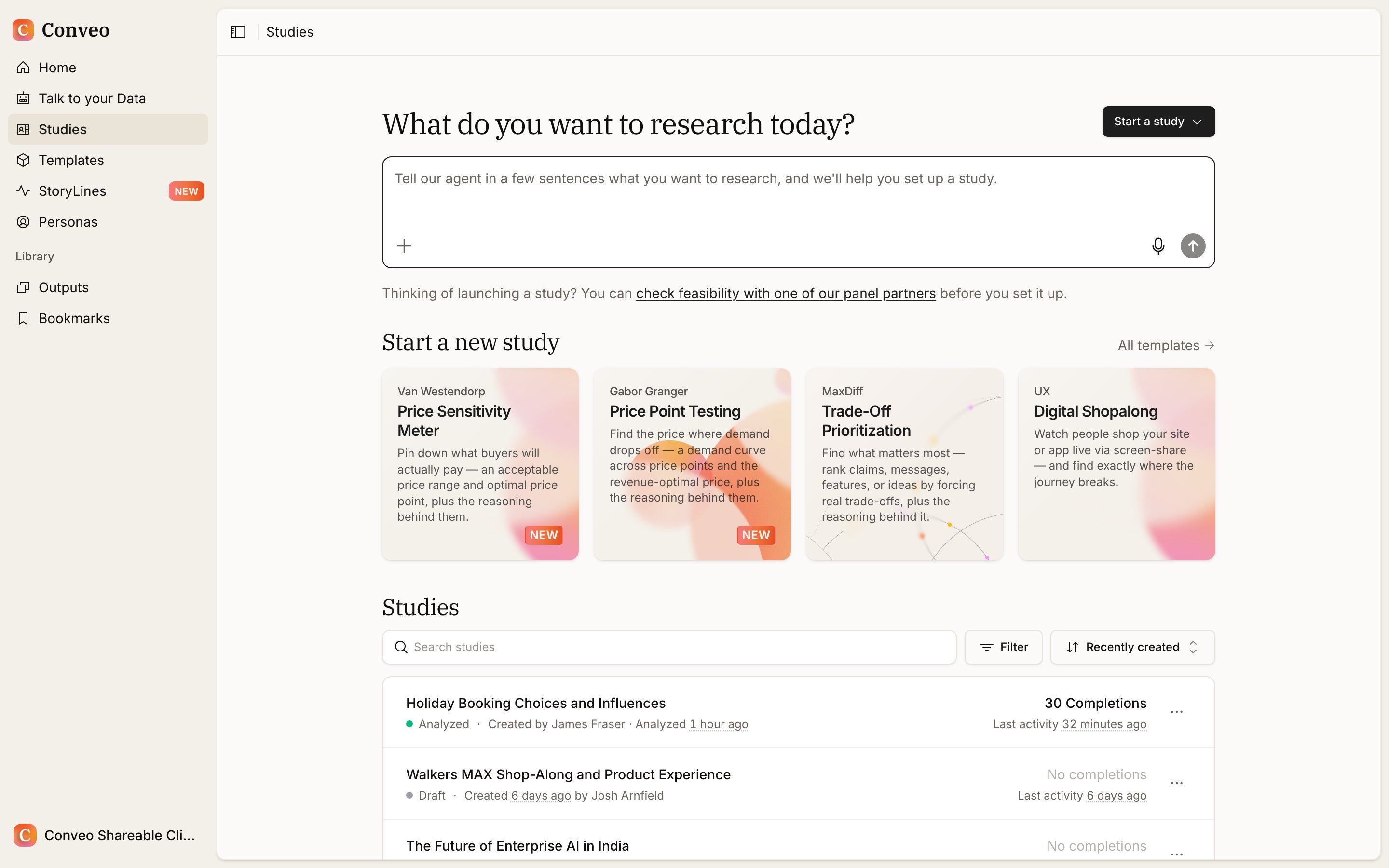
Key Concepts Explained
A study contains a research design and its interviews and outputs. A template provides a reusable starting design. Tags classify studies; projects group related research and can provide shared access to their contents.Quick Reference
Creating studies requires the appropriate organization permissions. Review any generated or copied guide, audience settings, and translations, then test the study before recruitment.
Filtering and Organizing Studies
Text Search
Search matches study titles, the study slug, participant-facing title, research context, and creator details. Matching is case-insensitive. Search narrows the current filters; clear filters if an expected study is missing, and check that you are in the correct organization.Tag Filtering
Selecting several tags returns studies with all selected tags. Status and creator selections match any selected value within their respective filter. A team selection matches any selected team with direct or project-inherited access to the study, within the studies you can already access.Completed Studies Filter
Use Status → Analyzed to find studies marked analyzed. Use Has completions to find studies with completed real interviews containing messages. These answer different questions: a study can have participant completions while fieldwork is still in progress. Sort by Recently created, Recently updated, Name (A–Z), or Most completions. Filter and sort preferences can persist when returning to the list; text search is session-specific.Navigate with the keyboard
Open the command menu with ⌘K on Mac or Ctrl+K on Windows/Linux to find accessible studies, Storylines, outputs, and app destinations. Use ⌘/ or Ctrl+/ to open the searchable keyboard shortcut reference. Available destinations respect your permissions and enabled features. Common shortcuts use two keys in sequence, without holding a modifier:
Letter shortcuts are suspended while typing or using an open dialog. The command menu and shortcut reference can still be opened from a text field.
Study Tags
Key Points
Tags are shared organization categories such as market, brand, or method. A study can have several tags. Tags organize research without providing access permissions.Managing Tags
Organization admins manage the shared tag list in organization settings. See Manage tags for creation, renaming, deletion, and limits.Applying Tags to Studies
Choose existing tags in the study’s design settings with study editing access. Use a project when related studies should share a workspace rather than just a category.Study List
Study rows show the study title and available context such as tags and completion counts. The status distinguishes:- Draft: the study has not met the launched-panel or real-interview conditions used for an in-progress study.
- In Progress: the study has launched recruitment or real interview activity and is not marked analyzed.
- Analyzed: the study is marked completed for analysis. This label does not guarantee that every generated output is current or reviewed.
Study Actions
Use the row menu for the actions your access allows:- Duplicate: create a separate study based on the source design. The ordinary duplicate flow does not copy participant interviews. Review the new study’s setup before launch.
- Create template from study: reuse the design through the template workflow where this action is available.
- Move: transfer a study to another organization when you have the required permissions in both organizations. This changes its organization and billing account, clears its old project association and organization tags, and updates organization-level access. Review sharing and organization-linked configuration afterward.
- Delete: remove the study from normal access and the study list after confirmation. Deleting a study is not the same as verified permanent erasure of all associated data; contact Conveo for data-retention or erasure requirements. Do not use deletion simply to categorize finished work—use the analyzed filter, projects, or tags.