

Two Ways to Create Slides
Generate Slides from a Report
- Open your report and review the version you want to present.
- Choose Create slides from the report’s actions.
- Wait for generation to finish, then open the deck.
Create Slides from a Brief
- Open your study’s Analyze page and select New Slide Deck.
- Describe the audience, research questions, and desired emphasis.
- Click Create to start the AI-assisted workflow.
- Review the resulting deck and request changes.
What Gets Included in Slides?
A deck can contain narrative findings, charts, quotes, tables, and images. The content depends on the source material and your instructions. Check that numbers, sample descriptions, and quotes match the evidence; generation is not a substitute for research review.Editing Slides in Conveo
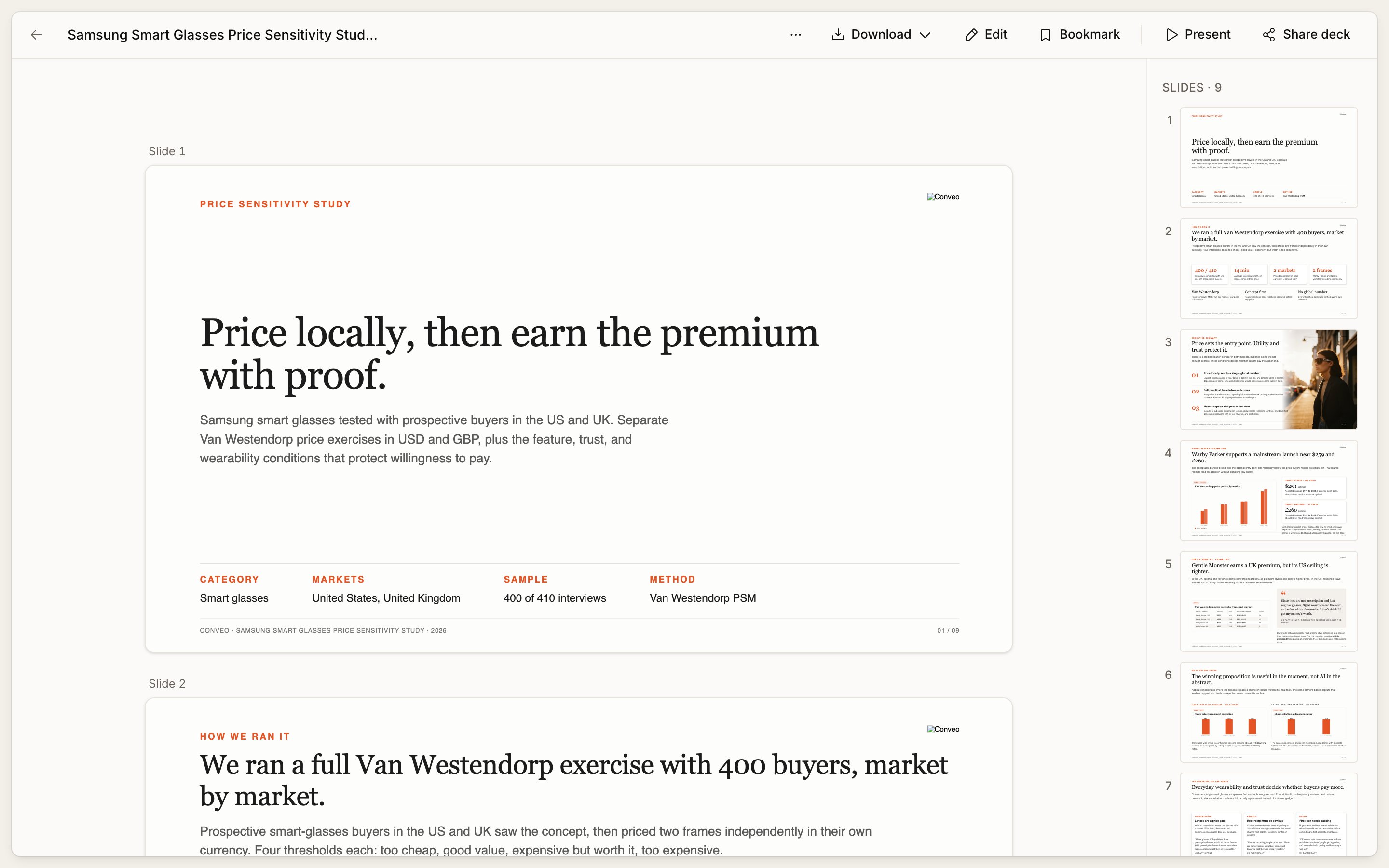
Open the deck and use Edit deck where available. The editing workspace supports requesting changes in conversation and working with slide text and images. Review slides after each substantive revision. The workspace keeps the deck in view with its editing controls and assistant alongside it. Reopening a stopped editing session does not itself instruct the assistant to change the slides: send the first message describing the change you want. Review any editing-session prompt before continuing; requesting changes can start an editing session even if the original generation is still finishing. Simply viewing the saved deck is separate from editing. Older decks may be available only for viewing and downloading. Editing also depends on your access and the controls available for that deck.Choose a brand kit
Use an available brand kit to provide the deck’s visual identity. An organization’s default applies to new decks. Changing the brand kit on an existing deck starts a rebuild that replaces its slides, so review the result before sharing it or continuing edits.Manage and share a deck
Use the deck’s available Outputs actions to rename, delete, or retry generation. Storyline deck-management actions require editing access to that Storyline; study decks use study editing access. Organization-level list actions check access to the deck’s contributing studies, with organization-admin access supported for their own organization’s studies. Access to another organization’s Foundation studies is still required. These list permissions do not automatically grant editing-workspace access. Retry starts generation again and returns the deck to a pending state. Review the rebuilt result before sharing it. Older decks made with the retired generation engine cannot be retried; create a new deck instead. Deleting a deck removes that output, not the original interviews or files already downloaded. Manage a recurring schedule separately if future decks should stop. Use Share to configure the deck’s audience, subject to organization sharing policies. A public link or direct deck-level grant can open a read-only presentation without granting study access or deck editing. Older decks without a saved presentation snapshot may not render in this standalone viewer. Review the recipient-facing link before distributing it.Present a deck
Choose Present where offered to open the deck’s saved slides without the editing workspace. Use the next/previous controls, Right/Left Arrow or Page Down/Page Up to move between slides. Space advances when focus is not on another control, and F toggles browser full screen. Enter can move keyboard focus into the slide to operate embedded media. Escape steps back out of slide interaction, leaves browser full screen, or returns from the presentation, depending on the current focus and display mode. Present uses the saved presentation snapshot. Unsaved edits are not shown until the workspace saves a newer snapshot; finish the change and reopen Present to check it before presenting. A pending build without saved slides has nothing to present yet, and a failed build needs attention. Present does not start an editing session. This presenter requires access to the deck workspace, including for read-only viewers. Use the deck’s Share link for an external audience rather than assuming a copied presenter URL grants access.Downloading Your Deck
Use Export in the active editing workspace, or Download for files already generated. Supported export formats are:- PowerPoint (.pptx) for an editable presentation.
- PDF (.pdf) for a fixed-layout document.
- PNG images (.zip) for slide images.