

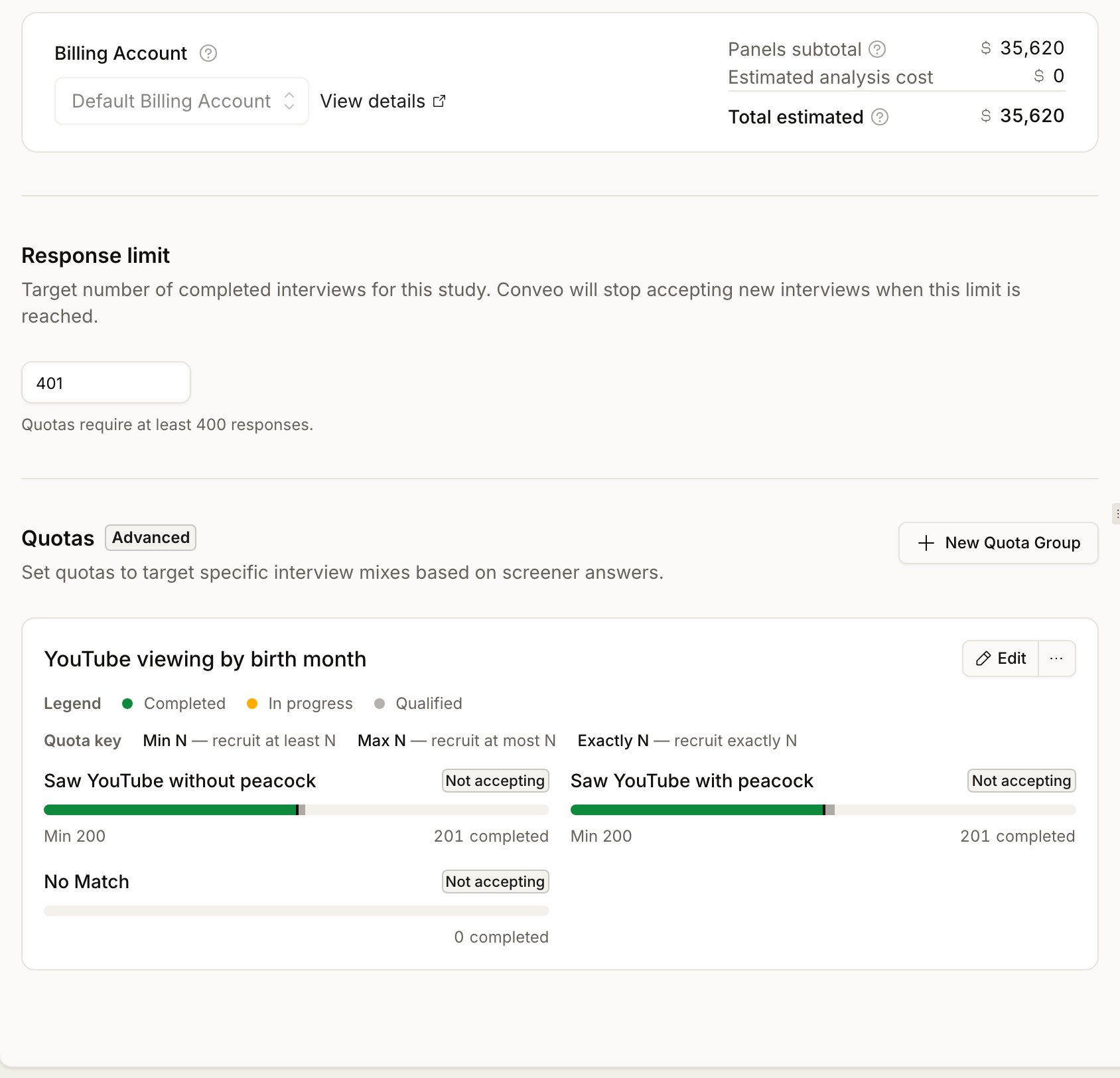
You must set a response limit on your study before you can add quotas. Conveo needs to know your total target to calculate when segments are full and when to stop accepting participants. You can set the response limit in the recruitment tab.
How It Works
- You create screener questions that collect participant attributes (e.g., “Are you a dog owner or a cat owner?”)
- You create a quota group by clicking New Quota Group in the recruit tab, and define different segments based on screener answers (e.g., “Dog owners” and “Cat owners”)
- For each segment, logic can be defined to add or exclude the participant from the group
- After creating and defining your segments, you set quota targets for each segment (e.g., minimum 20 of each)
- When a participant completes the screener, Conveo assigns them to a segment and checks whether that segment still has room — using completed interviews plus reserved capacity for qualified and ongoing interviews
- If the segment is full, the participant is screened out
Segment Logic
Segment logic is realised by creating a set of rules, linked through AND/OR operators:
Rules are always structured in the following way:
- Select the relevant screener question from the dropdown menu (e.g., “Are you a pet owner?”)
- Specify whether the rule includes or excludes participants by choosing either “Is any of” or “Is none of”
- Select the applicable screener question answers that should apply to this rule (e.g., “Dog owners” or “Cat owners”)
Quota Operators
Each segment quota uses one of three operators:
The quota of each segment is determined by one of those operators, ensuring there is no ambiguity.
How Quota Evaluation Works
Conveo evaluates quotas after the screener and checks segment capacity again when a qualified participant starts the interview. A participant who qualifies and returns later, before starting, may find that their segment has filled. Admission uses completed interviews plus reserved capacity: an estimate of how many qualified and ongoing interviews will finish. Reservations are weighted using interview progress and activity; they do not count every unfinished interview as one completion. Consequently, a segment can stop admitting participants before its completed count reaches the target. Capacity can change as interviews finish or become inactive. Reservations reduce overrecruitment but cannot guarantee exact final totals. Already-admitted participants may finish after a target is reached. Use Min when exceeding the target is acceptable; use Max or Exact to limit further admission, without treating either as a guaranteed final count. The study response limit also uses estimated completions. With quotas, it can allow additional admission while an active minimum or exact target remains unmet, provided the participant passes the quota checks. Panel limits still apply separately. Quotas are a filter, not a recruitment tool — they determine who is allowed to proceed into an interview, but they don’t control who gets invited. To target specific demographics during recruitment, configure that through your panel recruitment settings.Editing Quota Logic in Live Studies
Have second thoughts about your quotas after launch? You can still modify quota rules and segment logic while a study is live. Changing quota thresholds or logic will not disqualify participants who have already completed the study. Previously completed responses remain valid, even if they no longer meet the updated conditions. When you update quota logic:- Existing responses are reassigned to the appropriate segment based on the new rules
- If a previous recorded response no longer matches any segment, it will automatically be moved to the No Match bucket, ensuring that no data is lost
- Future admission decisions use the updated rules, including the capacity recheck for participants who qualified but have not started
- Edit segment rules (modify logic conditions)
- Change quota operators (Min, Max, Exact)
- Adjust quota target values
- Reorder segments (affects rule evaluation priority)
- Add new segments to an existing quota group
- Delete existing segments
- Add new quota groups
Examples
Simple Example: Dog vs Cat Owners
Say you’re studying pet care habits and want 30 total responses, evenly split between dog and cat owners. Setup:- Add a screener question: “What type of pet do you own?” with options “Dog” and “Cat” (both set to Qualify), and “Neither” (set to Disqualify)
- Set your response limit to 30
- Create a quota group with two segments:
- Dog owners — screener answer equals “Dog”, quota: exact 15
- Cat owners — screener answer equals “Cat”, quota: exact 15
Advanced Example: Combining Multiple Questions
For a food delivery study, you might want to balance by both age group and usage frequency. Since participants are assigned to one segment per quota group, you need two separate quota groups — one for each dimension. Screener questions:- “What is your age?” — options: “18–34”, “35–54”, “55+”
- “How often do you order food delivery?” — options: “Weekly”, “Monthly”, “Rarely”
Quota group 2 — Usage frequency:
A participant must pass both active quota groups to be accepted. So a 25-year-old, weekly user needs both the “Young adults” segment and the “Heavy users” segment to still have capacity.
Why separate quota groups? Each quota group is an independent dimension. A participant gets assigned to exactly one segment per group. If you want to balance on age and usage frequency independently, you need one group for each. You could also combine both dimensions into a single group with segments like “Young + Heavy user” — that gives you stricter control over exact combinations, but you’ll screen out more people along the way since each participant must match a specific combo.
How Blocking Works
When a participant finishes the screener, Conveo checks two things:- Is the participant’s segment full? If completed interviews and reserved capacity fill the max or exact target, or the incoming participant would exceed it, the participant is screened out. The completed total alone does not determine whether admission is open.
- Are there enough remaining slots? Conveo protects capacity for other segments’ minimum or exact targets. A participant can be screened out if accepting them would use those reserved slots. Participants who help fill their own named segment’s unmet target can still be accepted, subject to all other quota checks.
Quotas on the Assigned Stimulus
Normally a segment is defined by screener answers. But if your study uses screener-directed allocation, a participant’s answers often span several possible concepts — someone who shops at three retailers could be sent to any of them. Screener answers alone can’t tell you which one they actually got. The Assigned stimulus condition solves that. It judges the concept the participant was actually assigned, so you can set an exact target per concept — or per combination of concepts.Assigned stimulus requires screener-directed allocation to be enabled by Conveo for this study and at least one eligibility rule in the connected set of stimuli being balanced together. Contact the Conveo team if the capability is not available in your study.
Adding the Condition
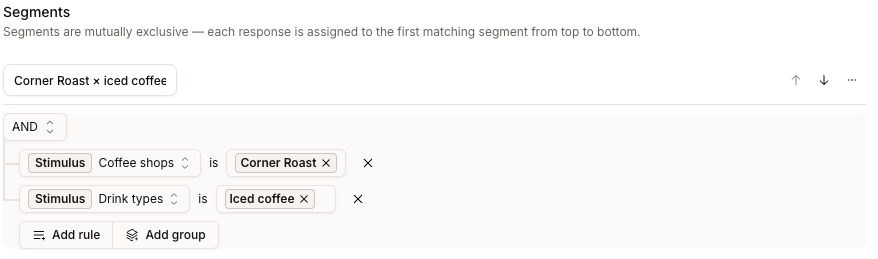
In a segment’s rule builder, open the question picker and choose your stimulus from under the Assigned stimulus heading instead of picking a screener question. The row then reads stimulus name — is — concepts, and you select the concepts that belong in this segment. Combine two rows with AND to name a single combination, for example Retailers is “Kroger” AND Categories is “Oral care”.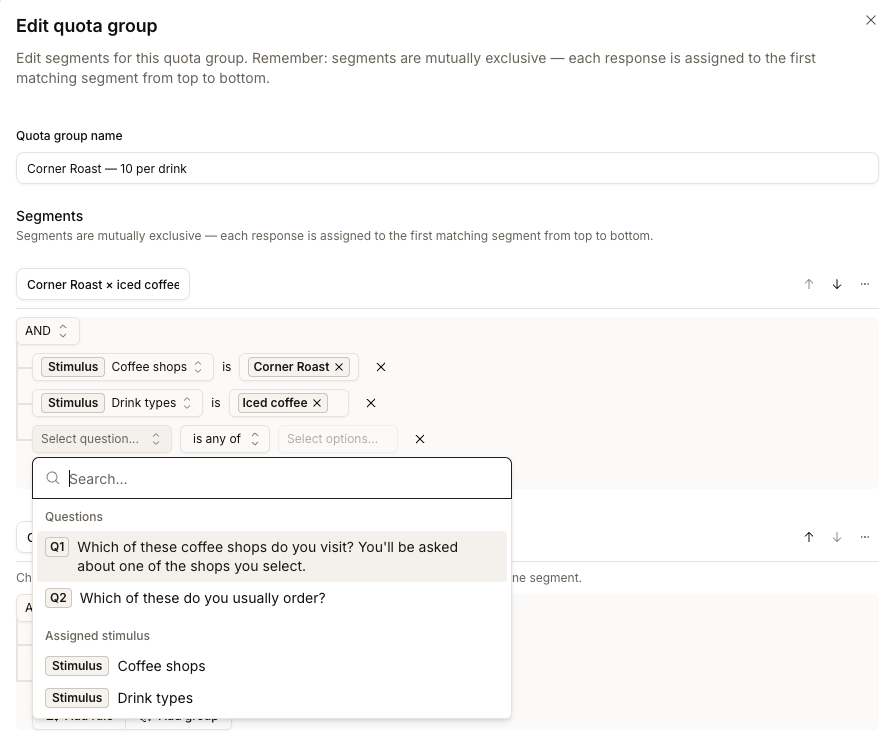
What Happens at the End of the Screener
With an assigned-stimulus quota, the concepts are drawn before the quota decision — the quota can’t judge a participant until it knows what they were assigned. Conveo draws from the concepts they’re eligible for, prioritizing less-assigned eligible concepts, then judges that assignment against your response limit and your quota groups. Once the response limit is reached and your minimums are met, the participant is screened out; no assignment could change that. If instead the segment their assignment puts them in is full, Conveo draws again — a different combination of concepts, and so a different segment — toward one that still has room. It works through the combinations the participant qualifies for, whether or not your stimuli are nested with Balance within. If none of the eligible assignments passes the active quota checks, the participant is screened out. The reason shown is then the quota reason (for example “The assigned segment’s exact quota has been reached”), not a screener mismatch. The one limit is scale. A study with a very large number of possible combinations per participant stops short of trying all of them, so someone can be screened out while a segment they qualify for still has room. Two restricted stimuli are comfortably within range — a 6 × 10 grid is 60 combinations. If you need three or more, keep the number of concepts in each one small. A participant keeps the concepts they were assigned, but the quota is checked once more when they actually start the interview. If their segment filled in between — because they closed the tab and came back later, say — they’re screened out then, and are sent to your panel’s quota-reached redirect like any other full-segment screen-out. They’re never quietly reassigned to a different concept.Example: A Grid of Retailers and Categories
Say you want 10 participants shopping each of 10 categories at each of 6 retailers — a 6 × 10 grid of 60 combinations, 600 participants in total, one task each. Setup:- Two screener questions: which retailers they shop at, and which categories they need to buy right now.
- Two randomized stimuli — one for retailers, one for categories — each concept carrying an eligibility rule tied to the matching screener answer.
- Set the category stimulus to Balance within the retailer stimulus.
- Set the response limit to 600.
- Create 60 quota groups, one per combination, each with a segment reading Retailers is X AND Categories is Y, quota exact 10.
Assignment balancing and quota admission both account for work already under way. The completed count is therefore not a complete measure of the capacity available to a new participant. See How Quota Evaluation Works.
Test Interviews and Returning Diary Participants
Test interviews bypass quota and study response-limit checks during screening. A test that returns to a qualified interview can still encounter the segment-capacity recheck before starting. A successful preview does not show that a live participant will pass those checks. In studies that allow multiple completions, a recognized participant with a previous completed interview can bypass the quota and response-limit check after the screener for later entries. The segment-capacity recheck also allows returning entries. Required screening and stimulus eligibility still apply, and the participant must remain within their entry limit and other recruitment requirements. Quota counts measure interviews assigned to a segment, not distinct people. For diary studies, review which entries answer the screener before interpreting a quota as a participant target. See recruitment limits for the separate panel and participant controls.Need help? Contact us at support@conveo.ai