


Ask for screen sharing only on the questions that need it
On desktop, turn screen sharing on for single questions or whole sections of the topic guide, so recordings show the participant's screen only during the tasks.
 Dag Malstaf
At a glance
- Choose Entire interview or Only selected questions or sections
- Turn it on for a whole section or for a single question
- Participants share when they reach a marked question and stop afterwards
- Recordings show the screen only for the marked parts
- Desktop interviews only. The Conveo app records the whole interview
Release details
- Shipped
- Area
- Platform & security
- Kind
- New
- Author
- Dag Malstaf
Screen sharing lets you watch someone use a website, a prototype or an app while they talk it through. On desktop it used to be one switch for the whole interview. Participants shared from the first question to the last, so a study with two short tasks came back with recordings where most of the screen footage showed nothing happening while people answered the other questions.
How it works
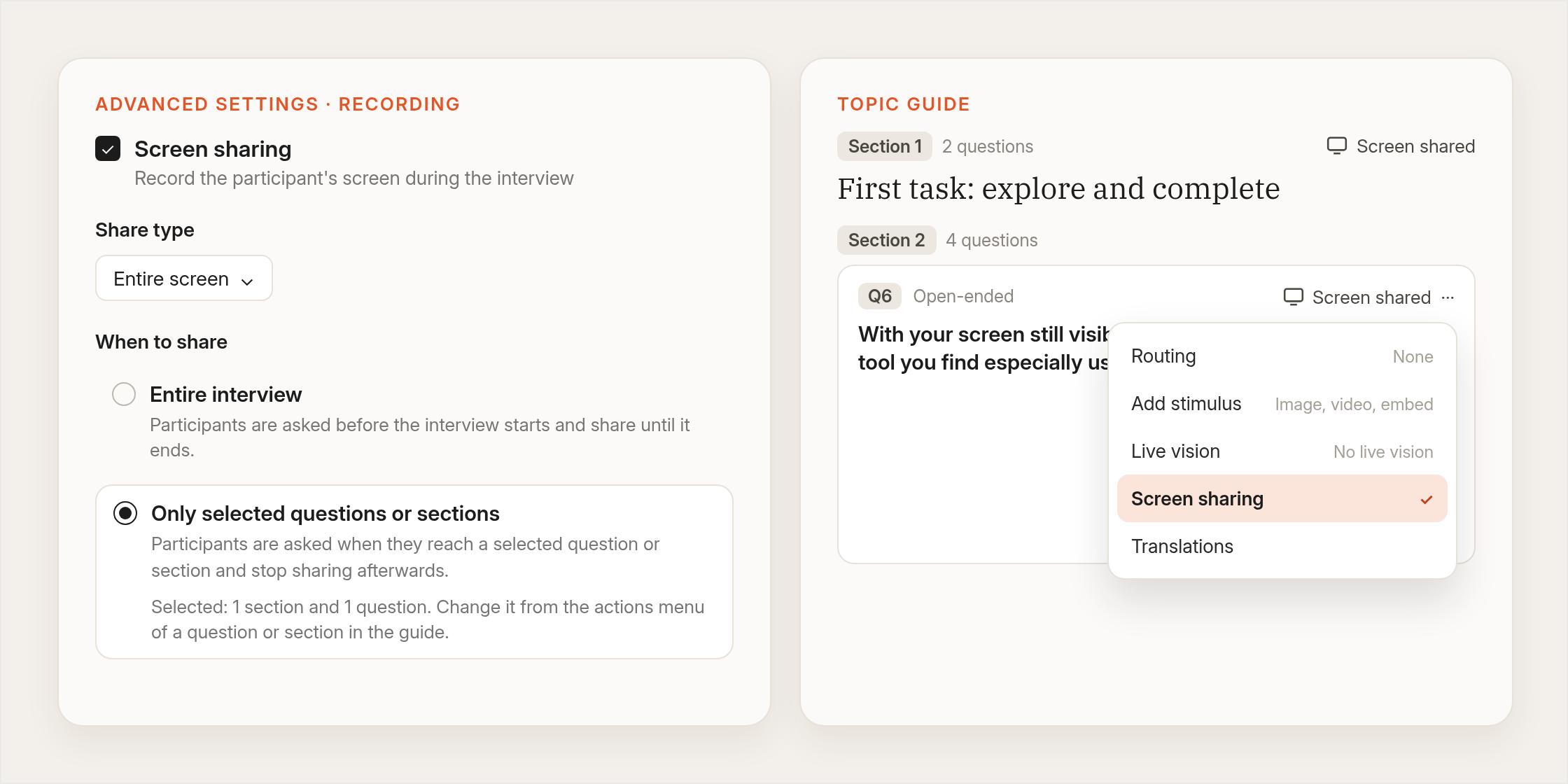
Choose when participants share. In Advanced settings, under Recording, turn on screen sharing and pick the share type as before. Under When to share, choose Entire interview or Only selected questions or sections.
Mark sections or single questions. Open the actions menu of a section or a question in the topic guide and switch on Screen sharing. A section turns it on for every question inside it, and those questions then show it as on for the whole section. Marked items carry a Screen shared tag.
Participants share when they get there. Participants are asked to share their screen when they reach a selected question or section, and they stop sharing afterwards.
The recording follows the guide. The participant's screen appears in the recording for the marked parts only, so there is less idle screen footage to scrub through when you review or clip.
Research teams asked for it in four situations
These come from sales and customer conversations with teams in travel, design software, financial services, streaming and retail, and with research agencies. We kept them anonymous.
One task inside a wider interview. A booking or checkout journey on a live site, with the rest of the conversation on camera.
Prototype and website walkthroughs. The screen is on for the walkthrough and off for the reflection questions afterwards.
Studies where only some parts need the screen. For example a study where the opening questions are conversation and only the task questions call for a screen.
A smaller ask for participants. Some people would rather not share their screen for a whole interview. Limiting it to the tasks keeps the request short.
What this means for your research
Your recordings carry the screen where the task happens, and the rest of the interview stays a conversation. The screen parts are quicker to review and to cut into clips, and participants share only for as long as you need.
Two limits to know. The control is for interviews on desktop browsers. Interviews in the Conveo mobile app record the camera and the screen side by side for the whole interview, whatever you pick here. And participants still choose what to share when the request appears, so say in the question what they should open.
Screen sharing on selected questions and sections is live in Conveo's own workspace today and rolls out to every Conveo client from the week of October 12.
Screen sharing on selected questions, from setup to recording
A narrated walkthrough of the setting, the topic guide, what participants are asked and the recording.
Watch the demo
In this demo from our engineering team, screen sharing goes on for one section and one single question, and the questions around them stay off. Read the detailed topic guide settings guide for every recording option.