

Creating a Template
How to create a template
From scratch
Open Templates and choose New template. Build the topic guide, research objectives, screeners, stimuli, and settings in the template editor. Creating templates requires study-creation access in the organization; editing an existing template requires its editing permission.From an existing study
Open the study’s actions and choose Create template from study. Conveo copies its design into a template. The source study’s collected interviews are not copied into the new design. Uploaded studies cannot be converted to templates through this workflow.Template variables
Templates support text variables and stimulus placeholders. These identify the content a researcher must customize before fielding a new study.Text variables
Write placeholders using{{ variable_name }}. Supported fields are:
- Researcher title, participant title, study introduction, and research context.
- Research-objective and section titles and descriptions.
- Question text, question context, and answer-option text.
- Terms-and-conditions titles and content.
{{ brand_name }} in the study title and questions. The same variable name shares one value across its supported occurrences. Keep names consistent; names differing by case are distinct variables.
The setup wizard detects variables and saves entered values automatically. Values remain editable: the saved template text retains its placeholders, while the study uses the supplied values when displaying or using that text. Clearing a value makes that variable unfilled again. Check save status and previews before launch.
Unfilled text variables in a template-derived study are a blocking validation issue. Do not assume a typed value has been applied before its save completes.
Stimulus variables
A stimulus created in the template editor starts as a placeholder for the expected content and type. The setup wizard links a placeholder to its stimulus editor so the researcher can supply the actual asset or configuration. Review copied templates carefully: a template made from an existing design can already contain stimulus content. Do not assume every copied asset has become an empty placeholder. Resolve remaining placeholders and test the stimuli before launch.Template title and instructions
Use the template’s information editor to set:
Template information is separate from the participant-facing study title and introduction. The setup conversation can also have a configured greeting. Instructions appear in the setup experience; use them to explain variables, expected stimuli, and checks the researcher should perform.
Gallery appearance and examples
Card visual lets editors choose a gallery illustration or upload an image up to 8 MB. A custom image overrides the selected illustration; remove it to return to the illustration. Card artwork is presentation material, not a participant stimulus. The template information page also supports example studies with optional featured documents and captions, and a marketing video. Use these to show what the method produces. Preview examples and the processed video before sharing the template; a successful upload is not proof that video processing has finished. Template editing access controls these changes.Using a Template
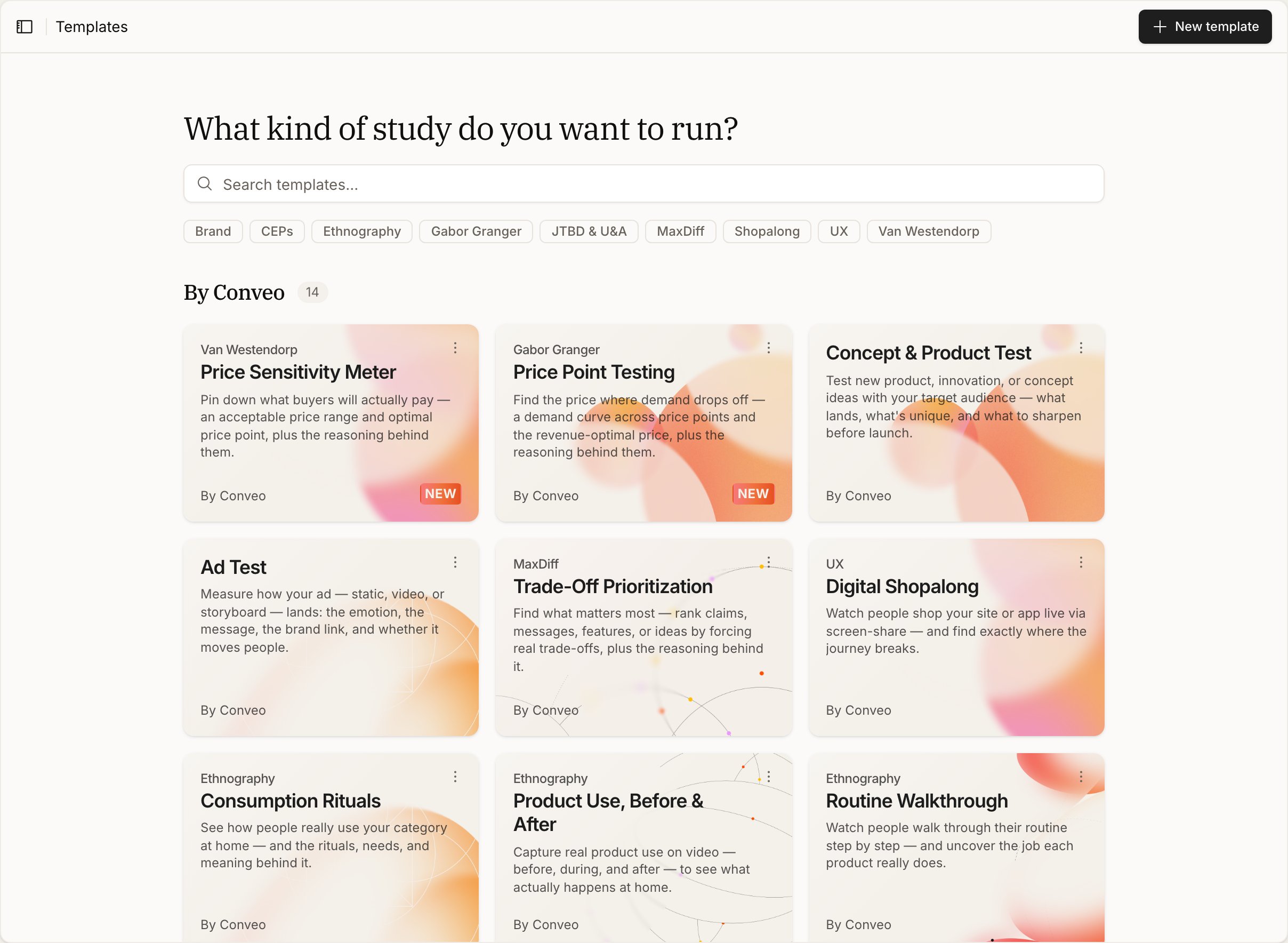
- Open Templates and select a card to preview its design.
- Choose Use template to create a study.
- Read the instructions and complete the text variables in the setup wizard.
- Replace any stimulus placeholders and review inherited languages, recording settings, routing, and recruitment configuration.
- Run test interviews before launch.