

Creating a Report
From a Template
- Open your study’s Analyze page and choose New Report.
- Select a report template and provide instructions about the questions, audience, or findings to cover.
- Review the optional settings, including whether to also create a slide deck.
- Click Generate and wait for the report to finish.
From Talk to Your Data
Ask Talk to Your Data to create and publish a report. For example: “Create a report on onboarding friction, grouped by theme, with supporting participant quotes and clear limitations.” Review the result and request changes in the conversation.Reviewing the Evidence
A report can combine narrative findings, charts, and participant references. Check the references and the underlying interviews before sharing a conclusion. AI-generated wording needs review: missing evidence, a small subgroup, or an ambiguous answer should not become an unsupported claim. Report content reflects the version that was generated. Do not assume an existing report automatically includes every subsequent interview or study change.Editing a Report
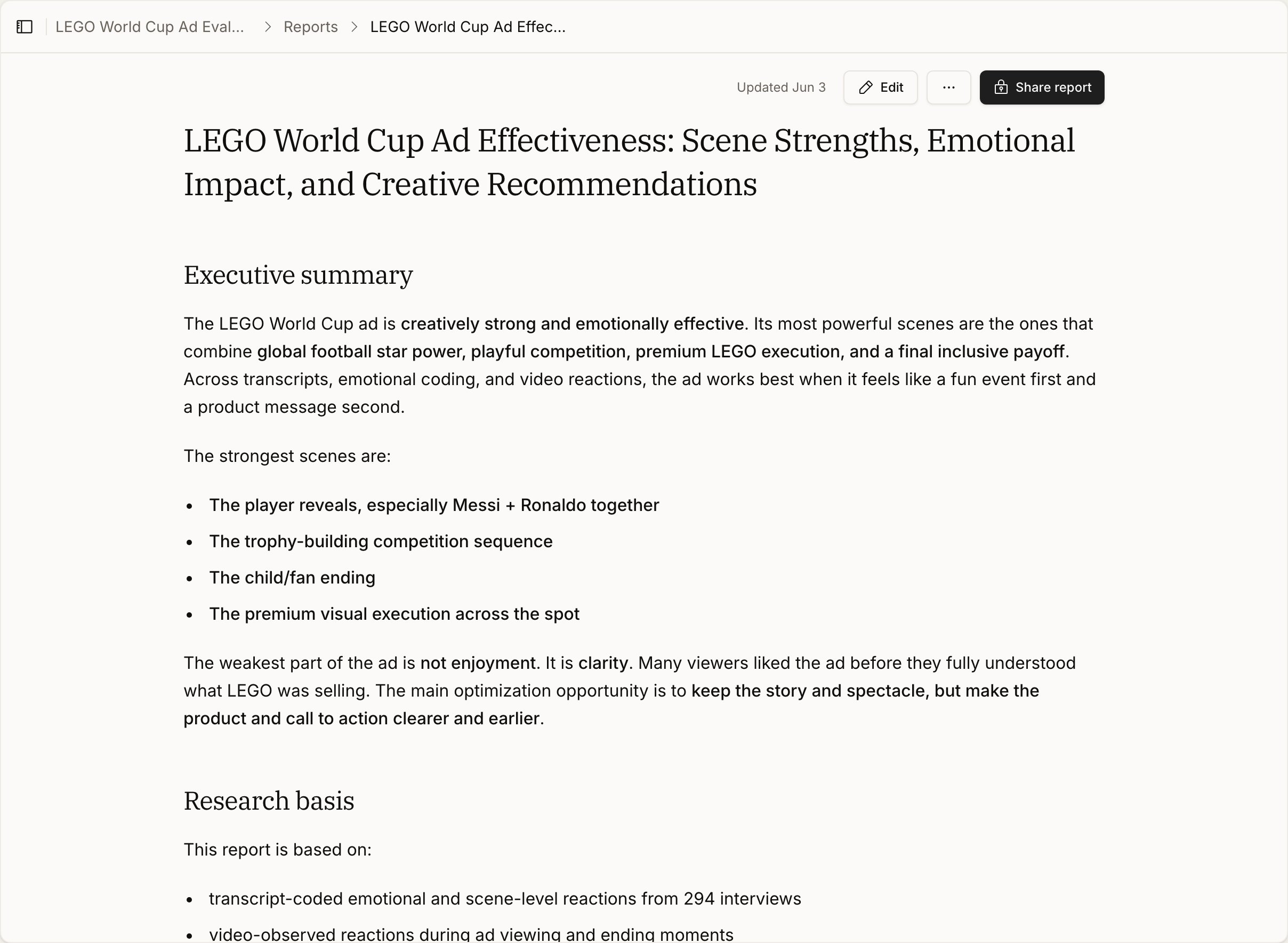
Open the report and click Edit to start a conversation with the selected report version as context. Describe the changes you need, such as shortening the executive summary or adding evidence for a particular finding. Editing a study report requires permission to edit the study. Viewing a report does not by itself grant editing rights.Version History
Open the report’s created/updated date to view Version history, then select a saved version to read it. Selecting an older version changes the version you are viewing; it does not restore that version as the current report.Report Settings
For study reports, the Settings action can feature the report in the insights sidebar and enable Also create a slide deck for future versions. Regenerate is available for reports with a saved report configuration. It queues a new version using that configuration; another regeneration is not queued while one is already running. Hide report applies to topic reports. Hiding removes the active report from the sidebar without deleting its saved documents. This option is not available for every report type.Manage saved reports
Use the report card’s available actions in Outputs to rename or delete a report. Storylines uses the same output list; its report-management actions require editing access to the Storyline. Study report actions require study editing access. Organization-level report management instead checks access to the contributing studies, with organization-admin access supported for their own organization’s studies. Access to another organization’s Foundation studies is still required. Renaming changes the report title without regenerating its findings. Delete removes the report and its saved document versions; it is different from Hide report. Check shared links before deletion because recipients will no longer be able to open the removed report. Deleting an output does not rewrite the source interviews or remove copies already downloaded. For recurring generation, manage the separate Storyline output schedule. Deleting one generated report is not a command to stop its schedule.Sharing and Exporting
Use Share report to review and configure access before sending the report link. A report link and a study link have different scopes; check the report’s sharing settings for the intended audience. Use Download in the report’s actions to open its download page and choose PDF or DOCX. The standalone shared-report download page uses the current active version; selecting an older version elsewhere does not make it the shared download. A recipient with a public link or an authorized report-level grant can view and export that shared report without receiving full study access. Evidence drilldowns may still require source access.Create slides from a report
To make a presentation, choose Create slides; see Slides for editing and export behavior.Troubleshooting
- No Regenerate action: the report may have been published from a conversation rather than created with a saved report configuration. Use Edit to request an updated report.
- No Edit action: check your study permissions with the study owner.
- An older report looks different from the latest results: check its version date and review or regenerate the report before sharing it.