

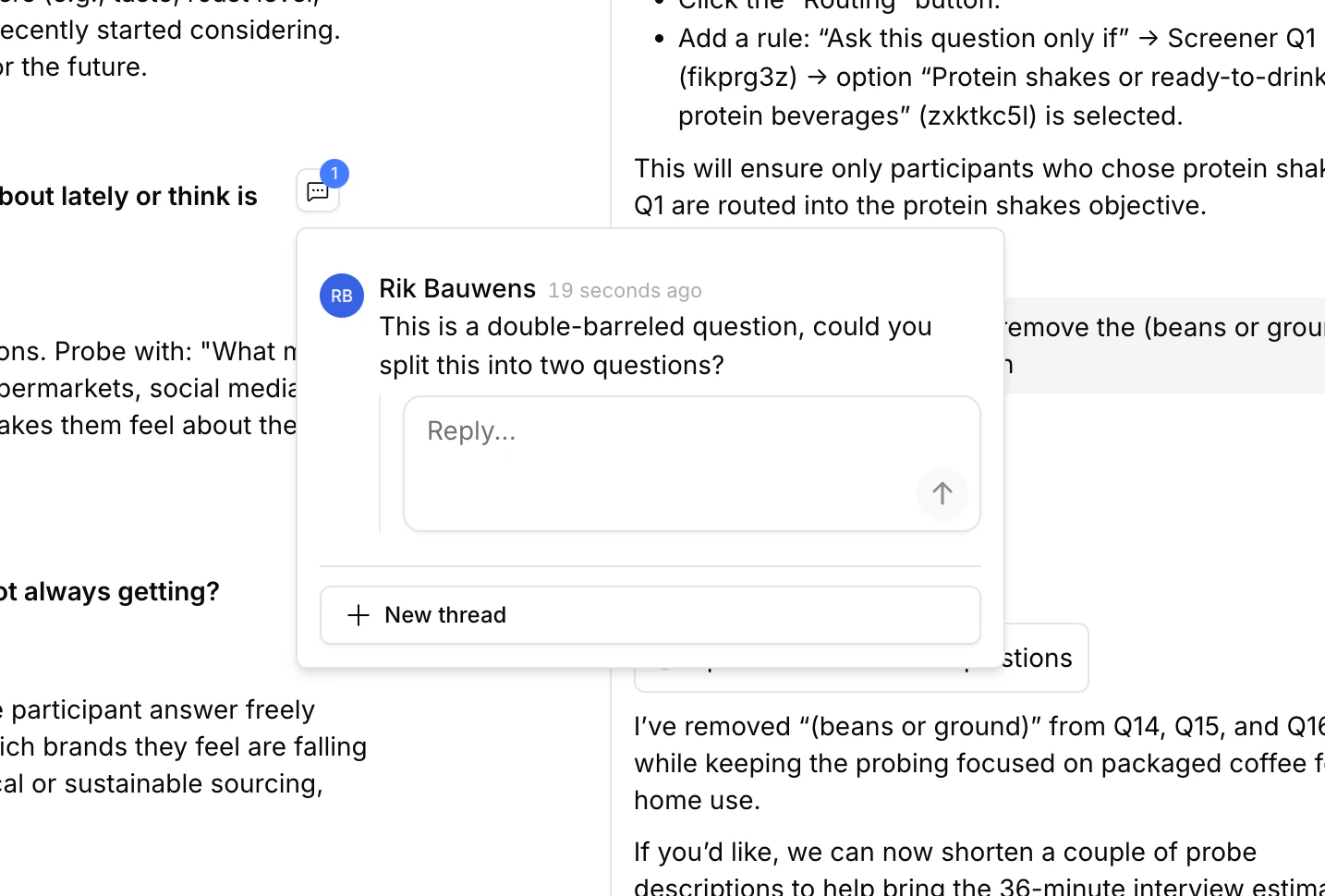
A comment thread on a topic guide question, with options to reply or start a new thread.
Leaving Comments
Comments can be left at two levels:- On the topic guide — click the Comment button next to the topic guide heading to start a general thread
- On a specific question — hover over any question and click the chat icon that appears on the right
Permissions
Logged-in users with read access to the study can create, reply to, resolve, and reopen comment threads, including viewers. Comment access does not grant permission to edit the topic guide. See Permissions and Sharing for study access.Working with the AI Assistant
A common workflow is to use comments as instructions for the AI assistant:- Review the topic guide and leave comments on questions that need changes (e.g. “Make this more open-ended” or “Add a follow-up about pricing”)
- Open the AI assistant tab in the right panel
- Ask the assistant to address your comments — for example: “Fix the open comments on the topic guide”
- The assistant can read open threads and use the feedback to prepare changes
- Review the resulting topic guide and any pending edits before accepting the result. The assistant can also resolve threads after addressing them; check that the requested change is correct even when a thread is marked resolved.
Managing Comments
- Comments tab — the right panel has a Comments tab showing all threads across the topic guide, with a count of open threads
- Resolve — hover over a thread and click Resolve to mark it as done
- Reopen — resolved threads can be reopened if the issue needs further discussion. Replying to a resolved thread also reopens it.
- Deleted questions — a question thread retains a snapshot of the question text. The thread can remain as feedback history even after the original question is deleted; it does not restore the question.
- Badge counts — open comment counts appear on question-level chat icons and the Comments tab badge so you can quickly spot unresolved feedback