

Before a participant starts
Participants enter through the recruitment or interview link supplied for the study. Keep personalized links intact: they can contain the participant identity and panel-return information needed to connect the response to the correct recruitment source. The entry flow depends on the study’s settings. Participants may choose an available language, provide requested details, accept consent forms, and answer screening questions before the main interview. Required consent must be accepted to start. See Screeners and Recruitment for configuring those steps.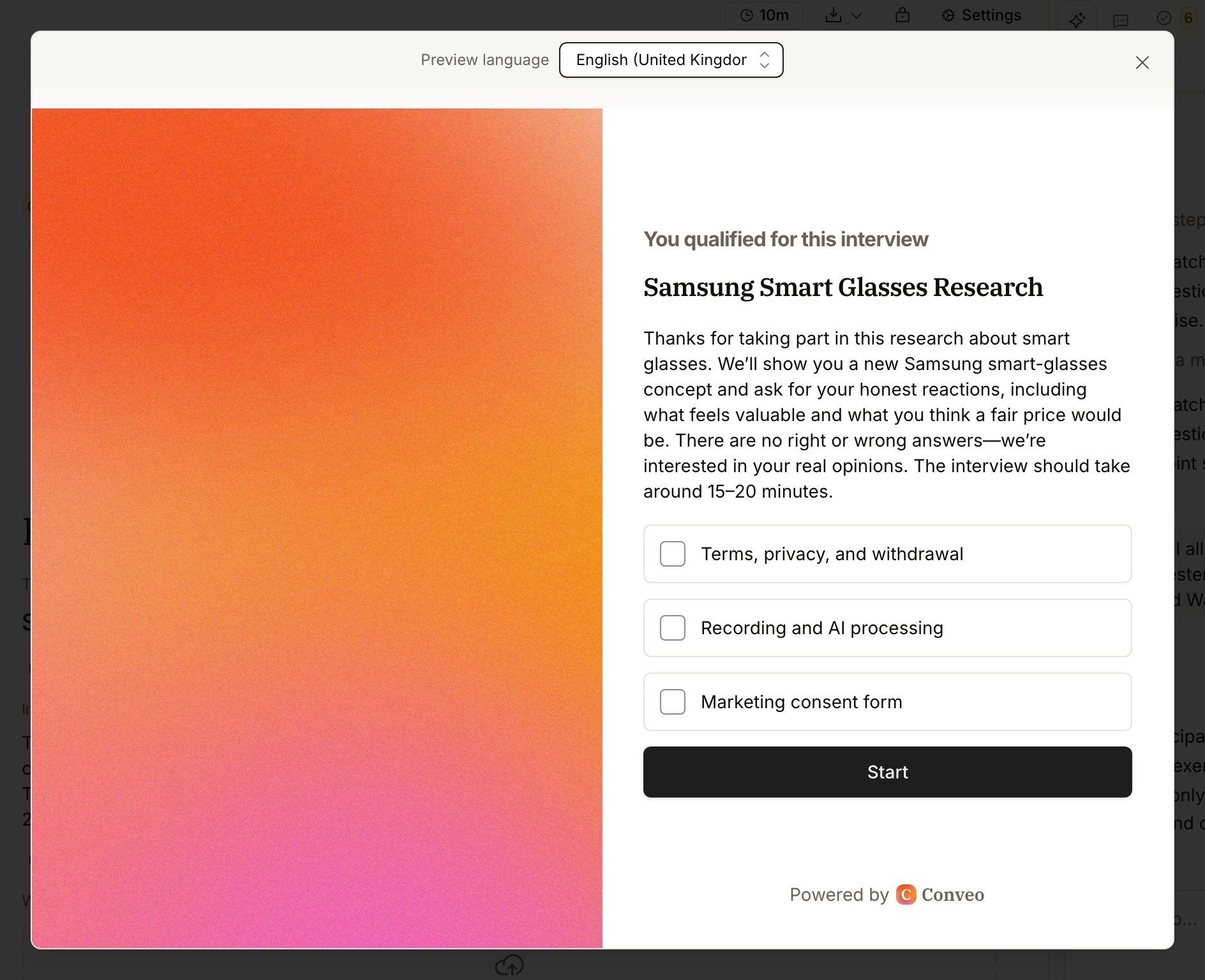
Prepare the device and recording
For a spoken interview, participants need working microphone access. Camera use depends on the study: it can be off, optional, or required. Continue with microphone only or Continue without camera appears only when the study permits a camera-off interview. The preview checks whether the required devices can actually open, not just whether the browser once received permission. If another application is using a device or access has been blocked, follow the recovery message and retry after resolving the issue. Some recruitment apps open links inside a browser that cannot capture audio or video. When Conveo asks the participant to open the page in a browser, copy the complete link into a supported browser such as Safari or Chrome. Browser and device compatibility still depend on the recording tasks required by the study.Camera quality prompts
At the beginning of a camera interview, Conveo can check face visibility, lighting, framing, and the visible environment. The moderator may ask the participant to adjust their setup and try again. These checks provide prompts only: a failed camera quality check does not end the interview. There is no researcher-facing mode selector. A quality prompt is different from a device failure. Participants still need working recording access when the study requires it. The checks do not guarantee usable footage or verify participant identity.Screen sharing and the conversation
If screen recording is required, participants receive the appropriate window or screen-sharing instructions. Close unrelated content before sharing. Use a device and browser that can provide the recording requested by the study. When a study allows phones, participants on a phone share their screen in the Conveo app instead of a browser; see Screen sharing on a phone. The interview gives instructions for answering each question. For recorded spoken answers, use the microphone control to start and send an answer. Desktop onboarding also describes the space-bar shortcut. Follow any selection, text-entry, or task instructions shown for the question. On a computer, where the browser supports the floating interview companion, its small window shows recording status, answer controls, and guidance while participants work in another window. Read the actual question in the interview page; the companion does not repeat the full question. Conveo may ask follow-up questions based on the response. Participants should answer in their own words and use the controls shown rather than refreshing to try to change the conversation.Screen sharing on a phone
A screen-sharing study can allow computers, phones, or both. The researcher sets this with Allowed device types. On a phone, the interview runs in the Conveo app, which is available for iPhone (iOS 18 or later) and Android.Opening the interview on a phone
When a participant opens the interview link on a phone and the study allows phones, they see This study requires the Conveo mobile app with two steps:- Install the app: Install the Conveo app opens the App Store or Google Play.
- Open this study in the app: Open the Conveo app opens the interview in the app.
Sharing the phone screen
In the app, the participant sees Share your screen to continue and taps Share my screen. The phone then shows its own system prompt, which the participant must confirm to begin sharing. If they cancel the prompt, they can try again. The phone shares its whole screen, even when the study requests a single window. Everything visible on the phone while sharing is on can be recorded, including other apps. Participants should close private content before they start. When the study records the camera, the camera shows as a small preview at the top of the interview. The floating interview companion is a desktop browser feature and does not appear in the app.When the study needs a different device
The device check happens when the participant continues past the welcome and consent page. A participant on a device type the study does not allow is asked whether they can switch:
After choosing to switch:
- Continue on your computer shows the interview link with a copy button and Email the link to myself, so the participant can open the link on their desktop or laptop.
- Continue on your phone shows a QR code to scan with the phone’s camera, plus the link. The interview continues in the Conveo app, which the participant is asked to install.
Updating the Conveo app
If the installed Conveo app is too old, the participant sees Update the Conveo app before the interview starts. Update app opens the app store. After updating, the participant opens the interview link again. An interview that is already in progress can still be finished on the older version of the app.Pause and resume
Use the interview’s pause control when taking a break. Reopen the same interview link to resume, complete any device checks, and continue the existing conversation when the interview remains eligible. A recording or device failure can also pause an interview. The pause message can explain that camera capture, recording, or screen sharing stopped. Resolve the stated problem and resume so the required media can be re-established. During a temporary connection interruption, the interview attempts to keep the answer in progress while reconnecting. If the connection is lost completely, the interview pauses after handling the current recording. Loss of required screen sharing also pauses the interview; resuming asks the participant to establish sharing again. Follow the recovery screen rather than assuming the answer or shared screen was captured successfully. A scheduled break is different from a voluntary pause. When the researcher enforces the break, the participant cannot resume until its scheduled end. Where an early return is allowed, use the option shown on the pause screen. Resume is not an unlimited access guarantee:- A deleted, completed, canceled, or screened-out interview cannot normally be continued as an active interview.
- Returning access can depend on panel availability and participation limits. An abandoned interview may still be resumable if those conditions permit it.
- If single-device sessions are required, continue in the original browser/device session. Switching devices, using a different browser, or losing the session cookie can prevent access.
- Pausing does not reserve a place in every recruitment or quota scenario. Qualified participants can have quota eligibility checked again on entry.