Create and review a kit
- Under New brand kit, enter a brand name.
- Upload brand guidelines or a strongly branded document, such as an investor report. Supported files are PDF, PNG, JPEG, and SVG. Upload between 1 and 8 files, each no larger than 50 MiB.
- Select Create draft from documents and wait for processing.
- Open the draft and review its colors, fonts, logos, and sample slides before you publish it.
Refine a draft
Open the kit and choose Edit with AI to describe a change. Review the assistant’s proposed changes and accept or reject them. Editing a published or archived kit creates a new draft version. Review and publish that version when ready; asking for an edit does not change the kit researchers can pick until you do. Versions are numbered within each kit: a new kit starts at v1, and each new draft of a kit takes that kit’s next number.Publish a kit
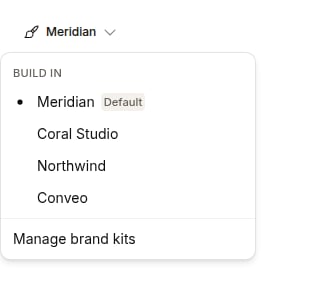
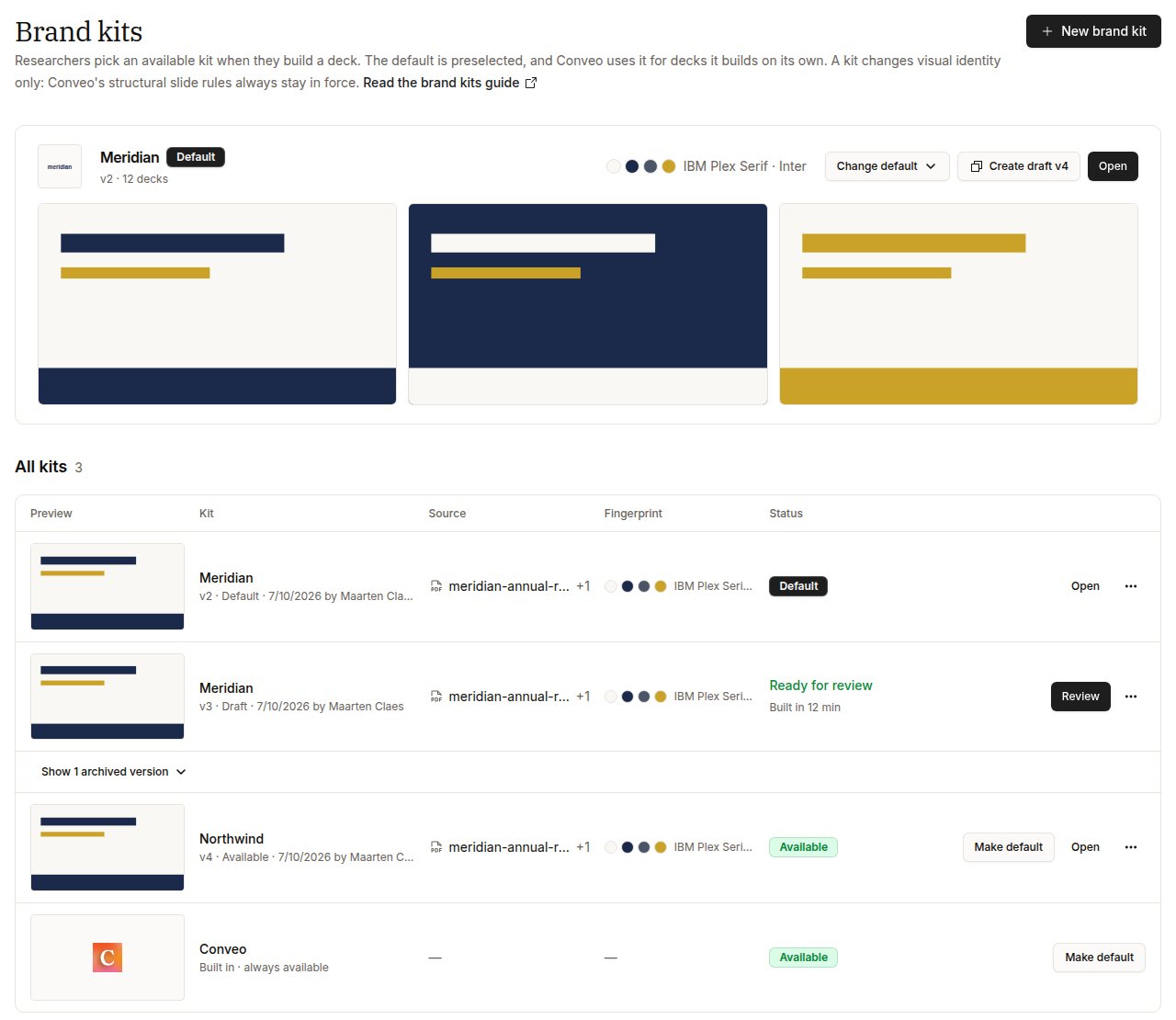
Select Publish on a reviewed draft to make it Available. Researchers can then pick it in the Build in menu when they build a deck. Your organization can offer several kits at once, for example one per client or sub-brand. Publishing a new version of a kit replaces the version that was on offer. The previous version is archived, and decks already built in it keep it. The list shows one row per kit, with its archived versions folded underneath: select Show archived versions under a kit to see them, then Restore on one to offer it again. New brand kit always starts a separate kit, even under the same brand name. Publishing it adds it to the kits on offer and leaves the default where it is. To update a kit you already offer, open it and select Create draft v…, then publish that version. It replaces the old version, and takes over as the default if the old version was the default.Set the organization default
One kit is the organization’s default, or Conveo when no kit is. The default is preselected in Build in, and Conveo uses it for decks it builds on its own, such as published reports and Storyline updates.- To make a kit the default, select Make default on it, or Publish as default when you publish it.
- To change the default from the top of the page, choose Change default and pick a kit or Conveo. Every kit stays available.
- When you publish a new version of the default kit, the new version becomes the default.
Stop offering a kit
Open a kit’s menu and select Stop offering to remove it from Build in. The kit is archived, and decks already built in it keep it. If the kit is the default, choose the new default in the same dialog.Choose a kit for a deck
Before a deck is built, pick its kit in the Build in menu next to Build deck. The menu lists every available kit and Conveo, with the default marked Default and preselected.