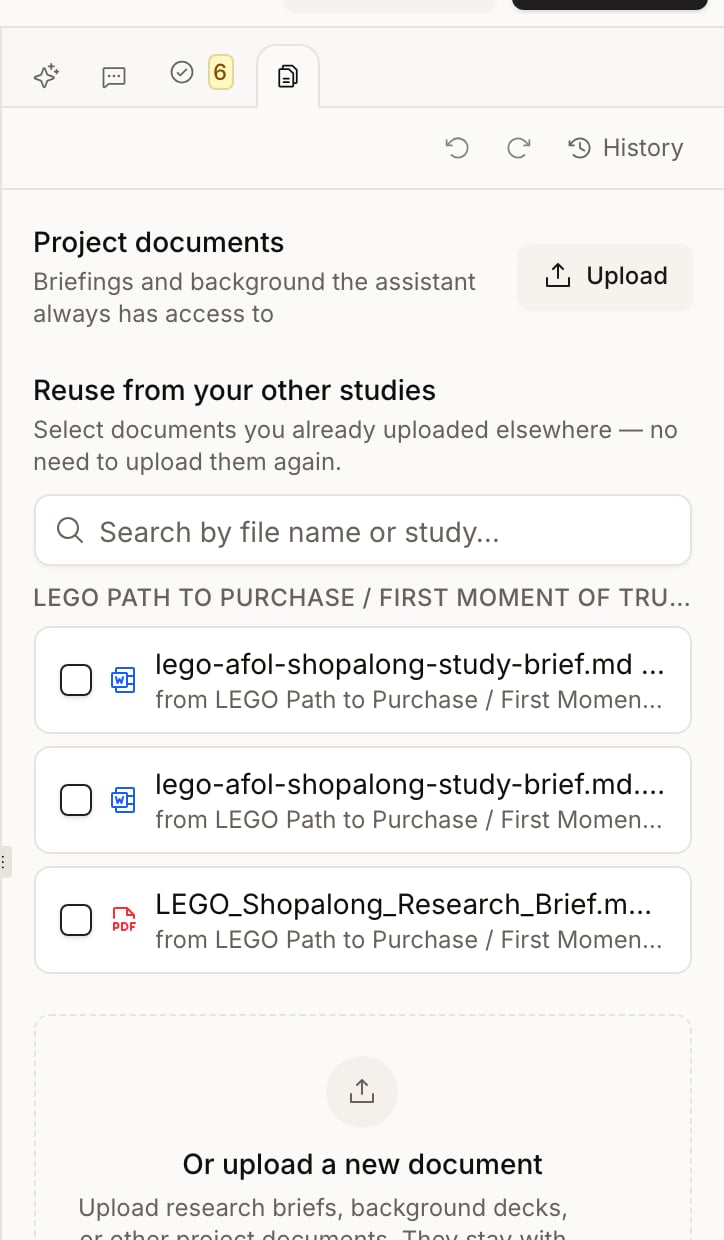
Study background documents give the assistant reusable context about your research: a brief, a methodology, or a background presentation. The documents stay with the study so you can use them across conversations. Active, successfully parsed documents are automatically included as background for the study design assistant. Background material is not participant evidence. Tell the assistant which documents provide context and which conclusions need support from interview data.

Add documents to a study

You need study editing access. In the study’s Design area, open Documents, then upload files or drag them onto the panel. Wait for processing to finish before relying on a document. Uploading a file and successfully parsing it are separate steps; review its status in the list. If the upload fails, check the format and size, then retry. A failed parse does not mean the assistant has usable document content. These formats apply to the Design Documents panel. Direct conversation attachments have their own formats and behavior.

Reuse a document from another study

When reusable documents are available, the panel offers a searchable library. Select documents and add them to the current study. Search by document name, title, or source study; narrow the search when more matches are available. The picker includes successfully parsed, active background documents from other studies you can view in the same organization. It omits content already active in the current study and groups identical files rather than listing every copy. Talk to Your Data attachments do not appear in this study-design picker. Add up to 25 selected documents per request. Reusing a document creates or reactivates a copy associated with the target study; it does not grant access to the source study or establish a live synchronization between the studies.

Remove or replace context

Remove an outdated document from the panel when the assistant should stop retrieving it as active study context. Removal deactivates the study’s document; it is not permanent file erasure and does not delete messages or generated answers that already used its content. Uploading the same file content again can reactivate the existing document instead of creating a duplicate. To replace a brief, remove the outdated version, upload the revised file, and check processing before requesting a new answer. Copies reused in other studies are separate. Review those studies when a shared brief becomes outdated.

Check interpretation and access

Documents inherit study access. Use the study’s sharing controls when deciding who should work with its background material. Parsing and AI retrieval can miss relevant content or interpret it incorrectly. Ask the assistant to identify the source document and verify consequential statements against the original. Very large collections can exceed the assistant’s context budget: newer documents take priority, and older documents or overflowing content can be omitted or shortened. Adding a document does not guarantee that every page, table, or image will be used in every answer. Continue with building the topic guide or reviewing its quality.